 NextEdge
School timetable software with substitute teachers
A teacher on leave should not mean a chaotic morning. NextEdge shows who is free for each period, so you can assign a substitute in seconds.
What you can do
- Set bell timings once and reuse them for every class
- Fill the class grid by picking the subject and teacher for each period
- Get a warning when a teacher would be in two classes at once, or a class would have two subjects in one period
- See each teacher's whole week
- For periods of teachers on approved leave, see a list of free teachers and assign a substitute
- The substitute is told, and sees the duty under My timetable in the app
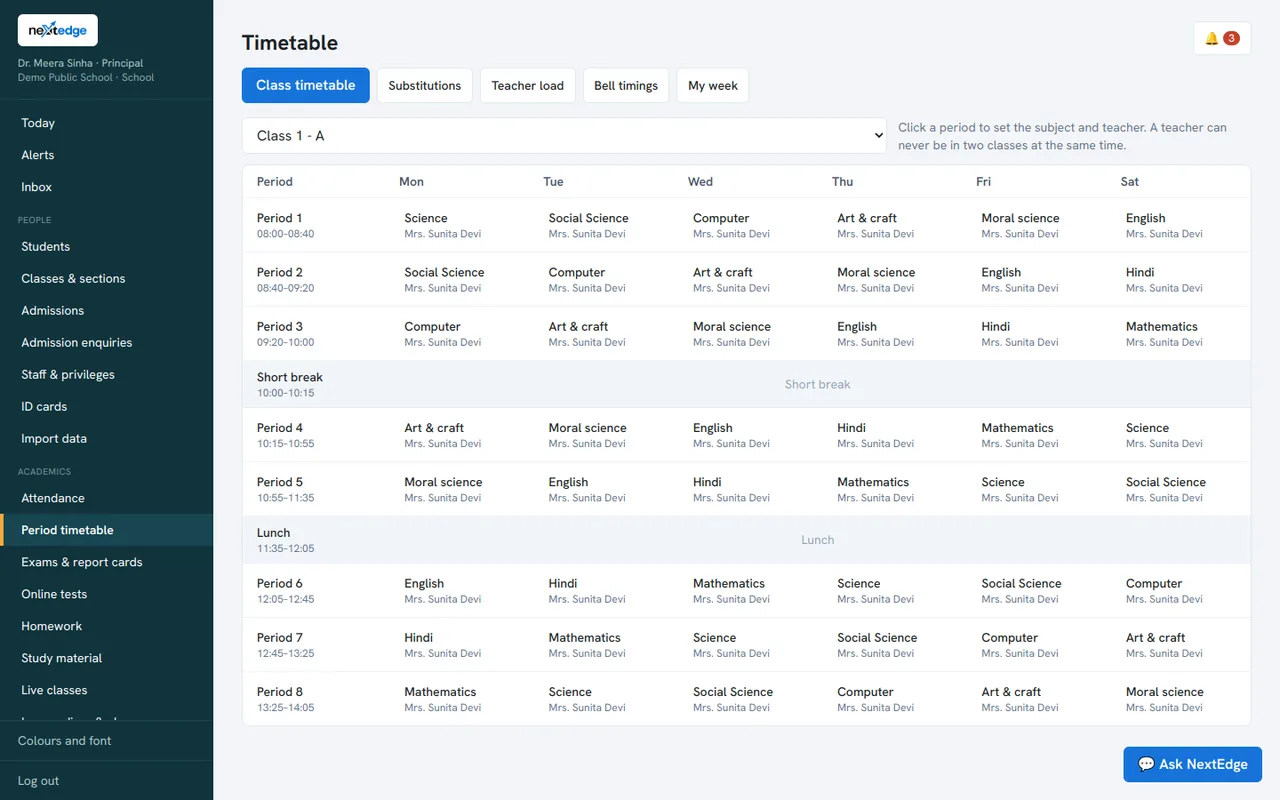
A real screen from the NextEdge admin panel, with demo data.
How it works
Bell timings
Define the periods of your school day.
Class grid
Subject and teacher for every period.
Leave comes in
Periods needing cover are listed.
Assign
Pick a free teacher.
Who uses it
Timetable in-charge
Build and fix the grid.
Teachers
See their week and any substitution duty.
Principal
Cover every period when staff are away.
Common questions
Does it build the timetable automatically?
Not yet. You enter it, and NextEdge checks for clashes and keeps it tidy. Automatic generation is on our wish list.
Does it handle teachers on leave?
Yes. Periods of teachers on approved leave are listed with free teachers you can assign.
Can teachers see their own timetable?
Yes, in the app under My timetable.
Can it handle different timings for different classes?
You choose the bell timings used by your grid. Tell us about your schedule in a demo.
See it with your own data
Book a free demo, or try the live demo school now.